Account profile and settings
“Profile” and “Settings” gather your account details: name, photo, delivery addresses, language, notifications and security. These pages are included in every plan. The account email address cannot be changed from the interface.
Before you start
- A signed-in account.
Steps
Step 1
Update your profile
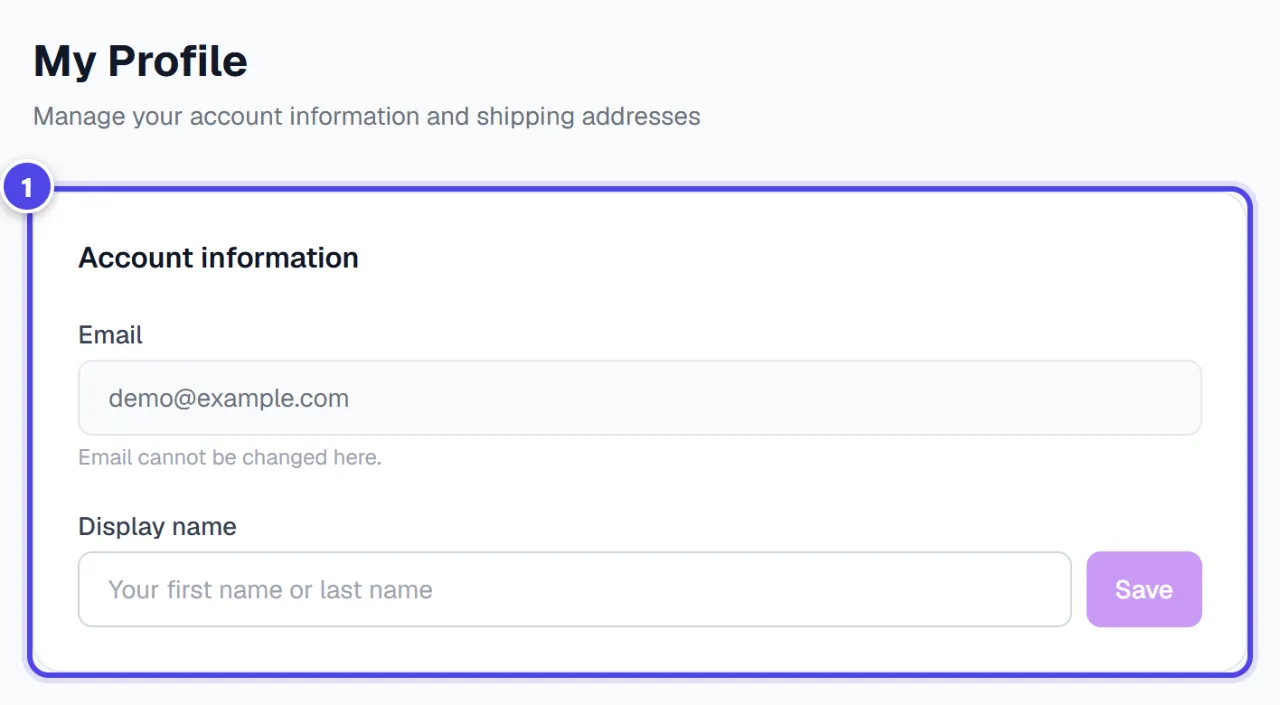
In “My Profile”, change the “Display name” then “Save”. Click on the avatar to change your photo: JPG, PNG or GIF. Max 5MB.
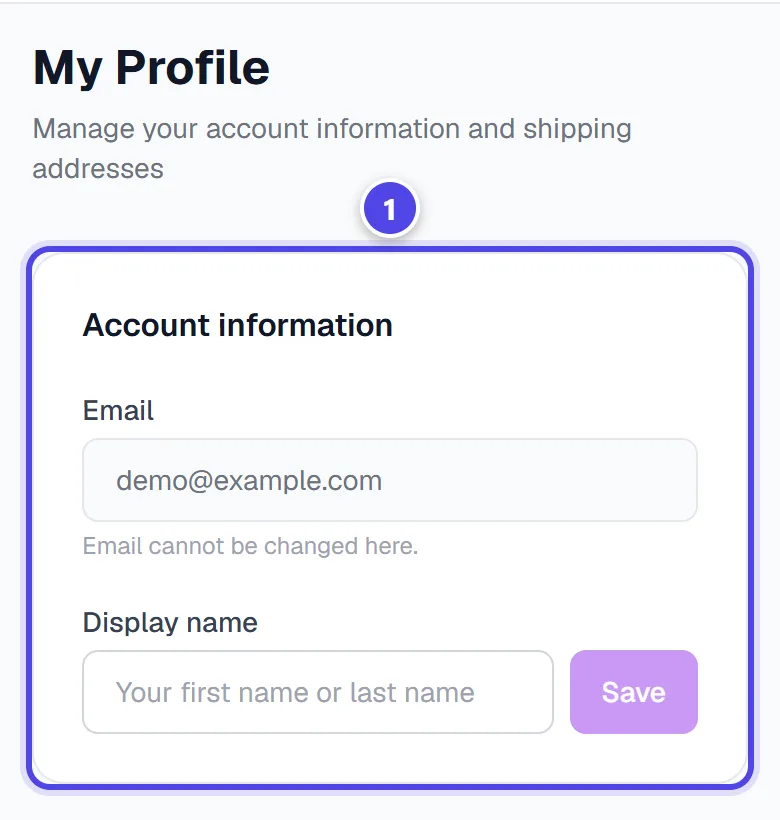
On mobile
- 1Account details
Step 2
Manage your addresses
Saved addresses are used for merchandise and print orders; one of them can be set as default.
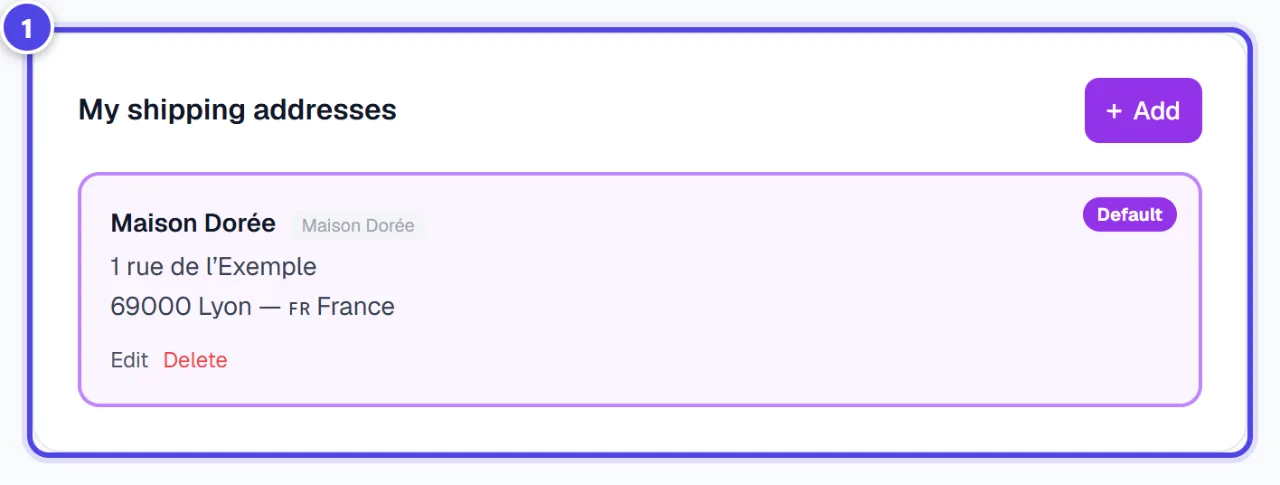
- 1Saved addresses
Step 3
Set your preferences
In “Settings”: “Preferences” (Interface customization), “Notifications” (Communication preferences) and “Security” (Security and password).
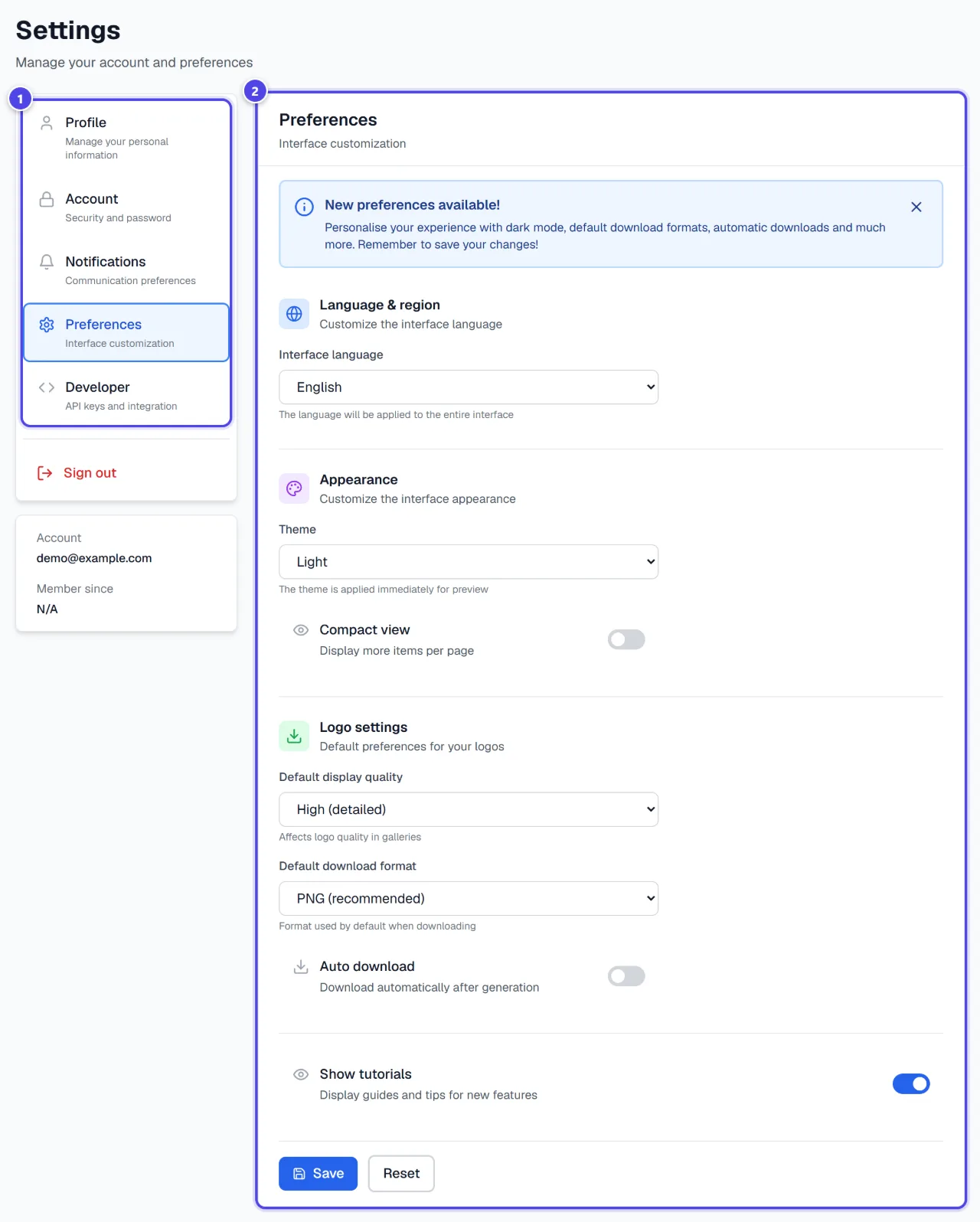
- 1Sections
- 2Preferences
Screenshots taken with a demo account and brand (“Maison Dorée”). The logos shown are examples, not customer creations.
What you get
- An up-to-date account: name, photo, addresses and preferences.
Tips and common issues
- The email cannot be changed.
- Solution: Email cannot be changed. Contact support if needed.
- The interface is in the wrong language.
- Solution: Change the language in preferences or with the selector at the top of the screen.
Frequently asked questions
Where do I change my password?
In “Settings”, under “Security”.
Are my addresses reused?
Yes, they are offered for your next orders.
How do I sign out?
With “Sign out” in the settings or the account menu.