Atelier Pro: cut out and upscale a logo for print
“Atelier” cuts out and upscales a logo, then places it on a square canvas as a transparent PNG. It requires the Solo plan or higher. Its cost depends on the service and image size: it is calculated and shown in the summary before you start.
Before you start
- A logo from your gallery, or a PNG, JPG, WEBP or SVG file.
- A Solo subscription or higher and enough tokens.
Steps
Step 1
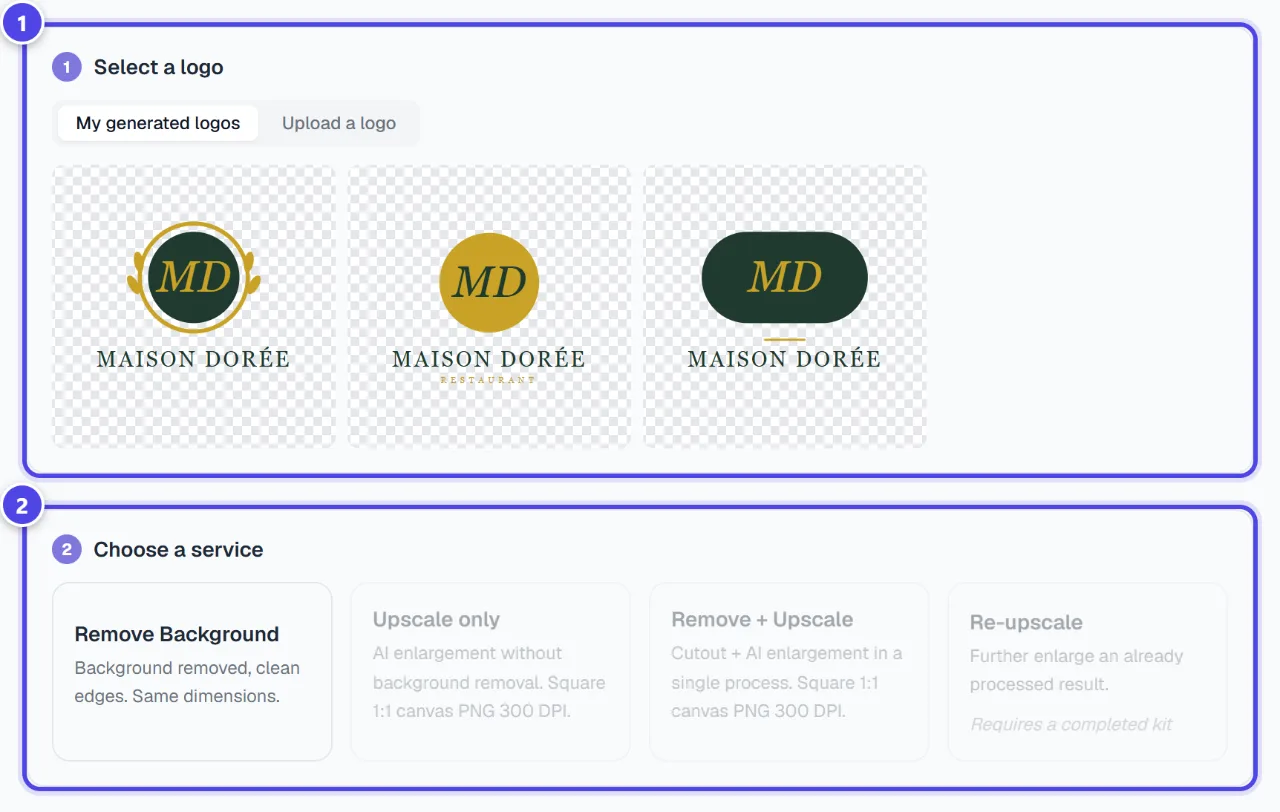
Select a logo
“Select a logo”: choose “My generated logos” or “Upload a logo”. The detected dimensions appear under the chosen logo.
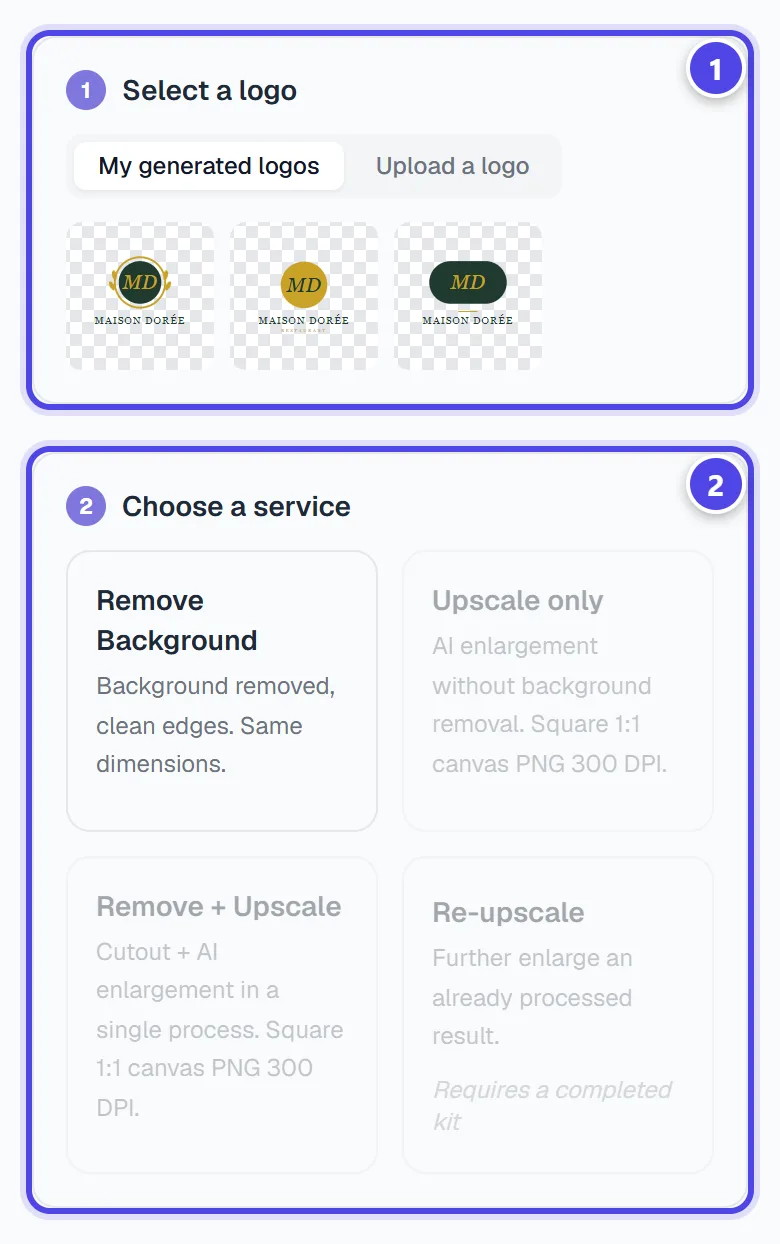
On mobile
- 1Choose a generated logo or upload
- 2Available services
Step 2
Choose the service and upscale factor
“Remove Background” (Background removed, clean edges. Same dimensions.), “Upscale only”, “Remove + Upscale” or “Re-upscale”. Then choose the offered upscale factor.
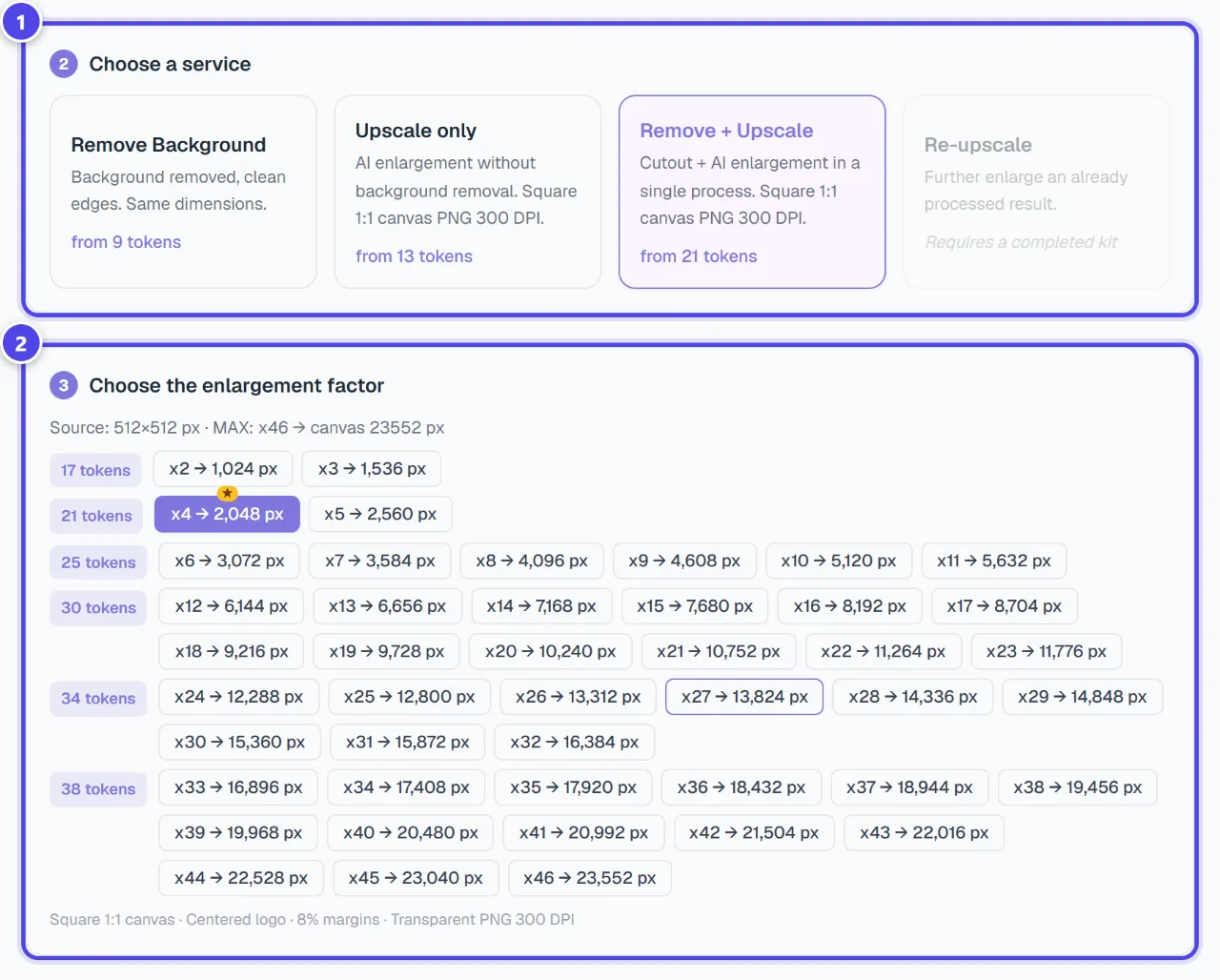
- 1Service
- 2Enlargement
Step 3
Check the summary and start
The “Summary” shows the service, factor, delivered canvas, “Tokens charged” and “Balance after”. The result goes to “History”.
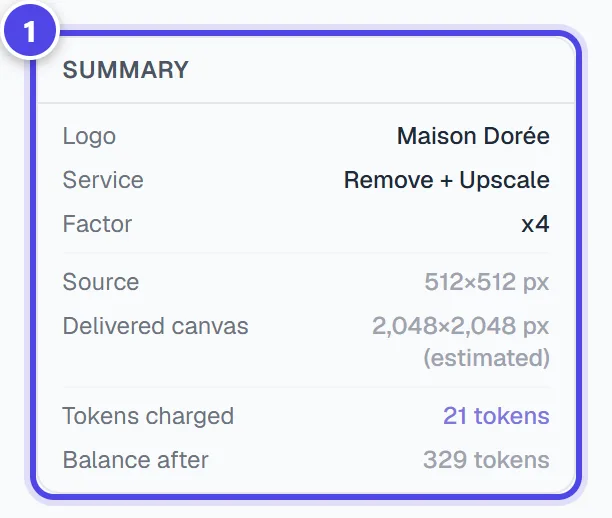
- 1Summary and cost
Screenshots taken with a demo account and brand (“Maison Dorée”). The logos shown are examples, not customer creations.
What you get
- A transparent PNG, cut out and/or upscaled.
- For upscaling services: Square 1:1 canvas · Centered logo · 8% margins · Transparent PNG 300 DPI.
Tips and common issues
- “No upscale possible from this source (image too large).”
- Solution: The source image is already large: use background removal only.
- The “Re-upscale” service is greyed out.
- Solution: Requires a completed kit
Frequently asked questions
How much does a treatment cost?
The cost depends on the service and image size. It is shown in the summary before any debit; a failed treatment is refunded.
Why a square canvas?
The logo is centred with margins, which makes it easier to place on printed materials.
How is it different from Background removal?
Background removal only removes the background; the Atelier can also upscale the logo.