Downloads: get your logos by project
“Downloads” groups your projects and their logos to download, one by one or as a ZIP archive. The page is included in every plan. The formats offered (PNG, JPG, SVG, PDF, EPS, ICO) depend on your plan and purchases.
Before you start
- At least one completed project.
Steps
Step 1
Choose a project
Each project shows its pack, style and number of logos. “View Gallery” shows the logos before downloading.

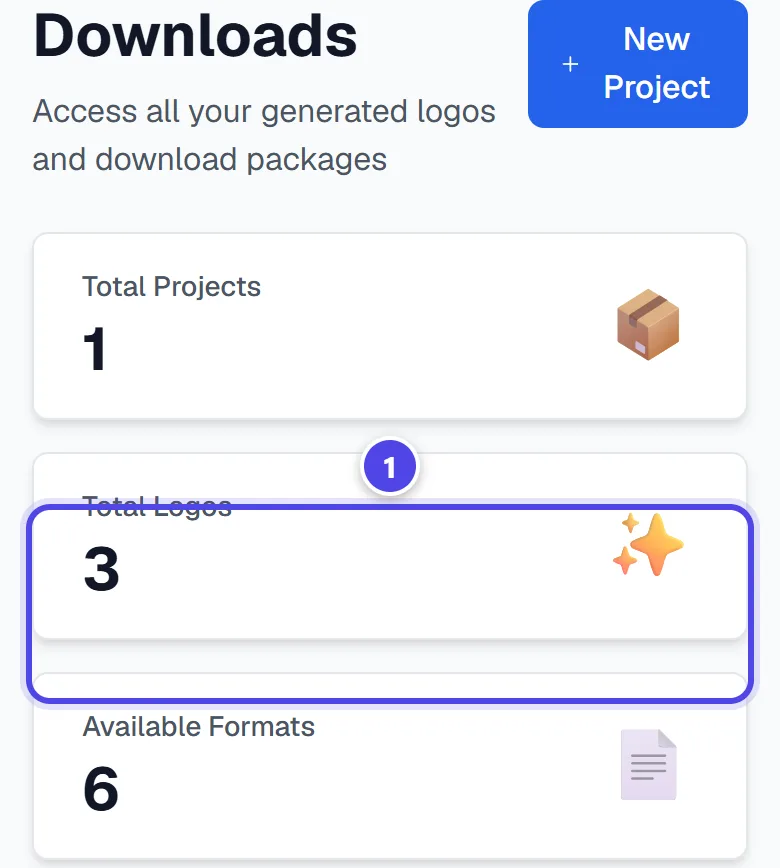
On mobile
- 1Available formats
Step 2
Download
Click “Download ZIP” to get every logo in a single compressed archive. For a single logo, choose the format in the download window.

- 1Download the ZIP
- 2View gallery
Screenshots taken with a demo account and brand (“Maison Dorée”). The logos shown are examples, not customer creations.
What you get
- Your logo files, one by one or as a ZIP archive.
Tips and common issues
- “No downloads available yet”
- Solution: Downloads appear once a project is completed.
- A format is greyed out.
- Solution: It depends on your plan or a purchase (Logo Pack, acquisition): see the “Which file for which use” guide.
Frequently asked questions
Which formats are offered?
PNG, JPG, SVG, PDF, EPS and ICO, depending on your plan and purchases.
Is the SVG a vector file?
For the Logo Pack and the Vectorized Pro Logo, yes. The token generator’s colour SVG embeds an image.
Can I download again later?
Yes, from this page.