Projects and logos: find your generations
“My projects” lists your generation projects and their progress; “My logos” gathers all your logos in a filterable gallery. Both pages are included in every plan and do not debit tokens.
Before you start
- At least one logo generation.
Steps
Step 1
Browse the gallery
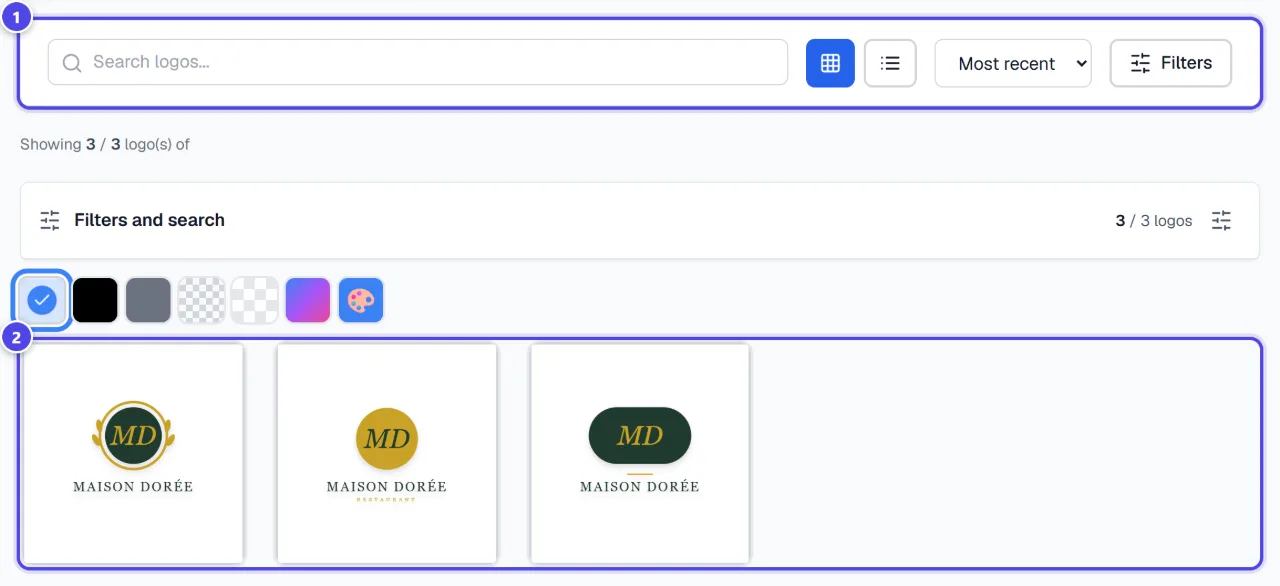
The “Logo Gallery” shows your logos. Search and “Filters” (project, date, status, favourites) narrow the list.
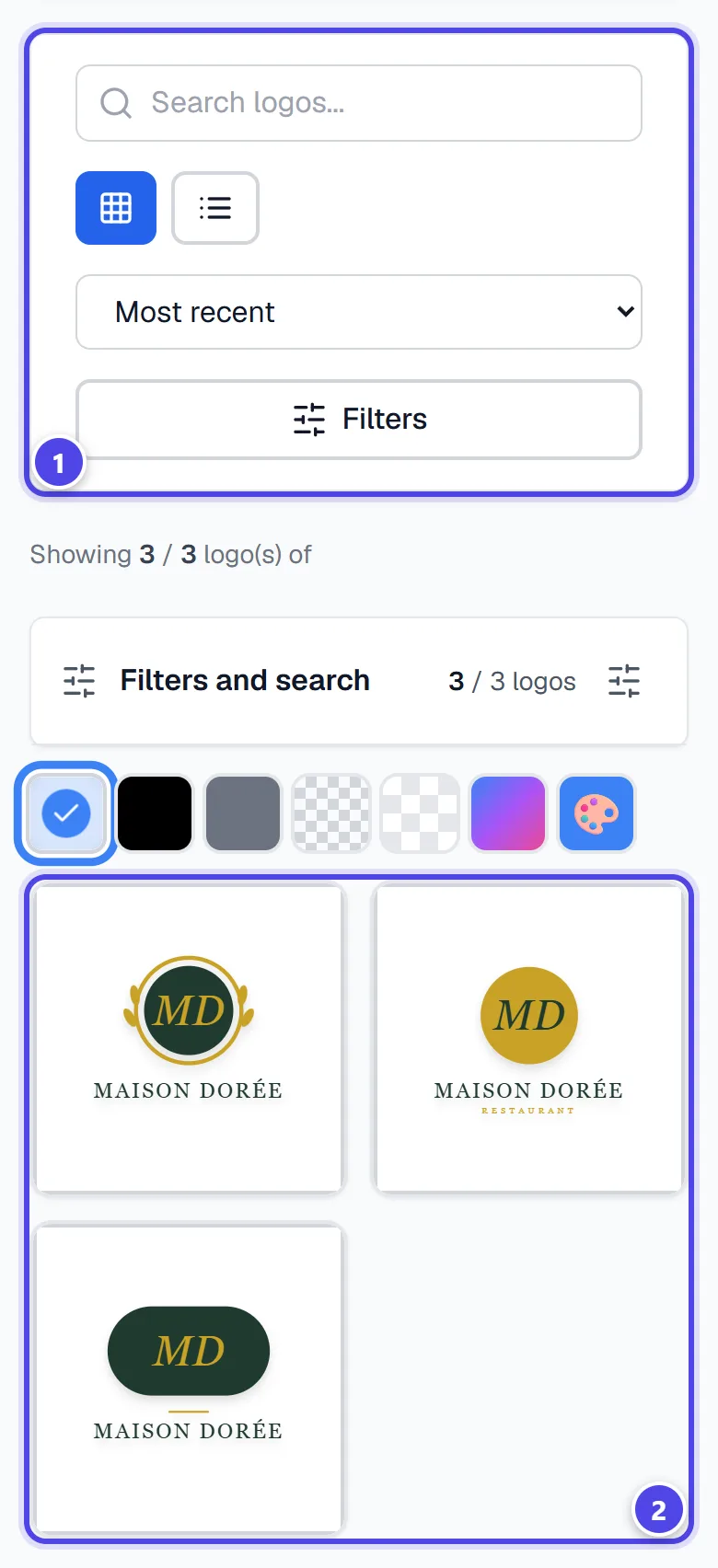
On mobile
- 1Search and filters
- 2Your logos
Step 2
Track your projects
In “My Projects”, filter by status: “Pending”, “Generating”, “Completed” or “Failed”. Projects are currently being generated. This page automatically updates every 5 seconds.
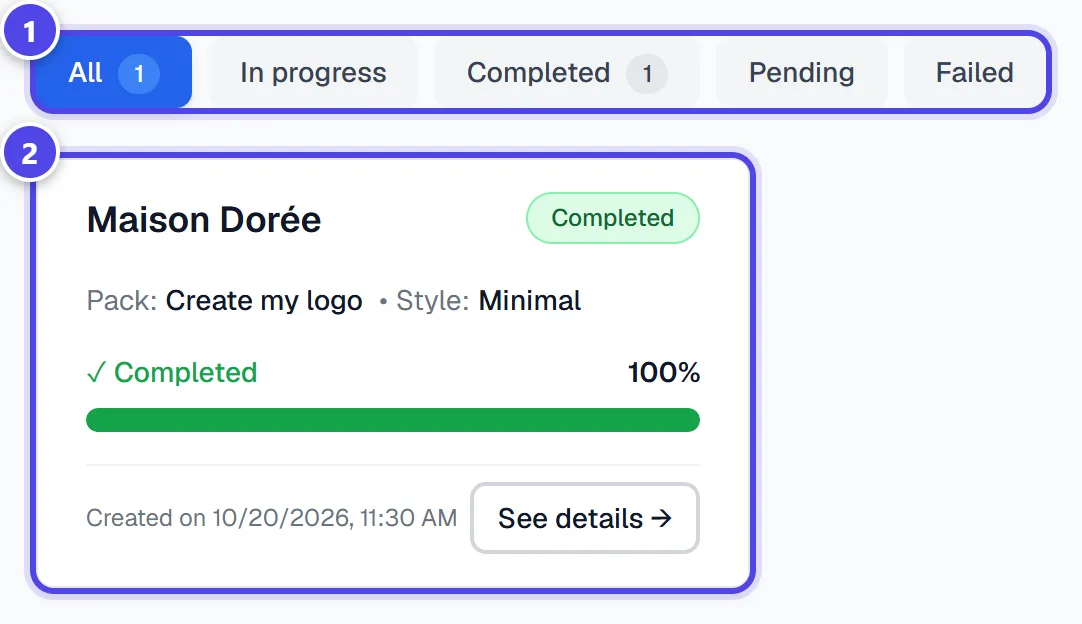
- 1Status filters
- 2Project
Step 3
Open a project
“See details” shows the project’s logos and their downloads. “My imports” groups the logos you uploaded.
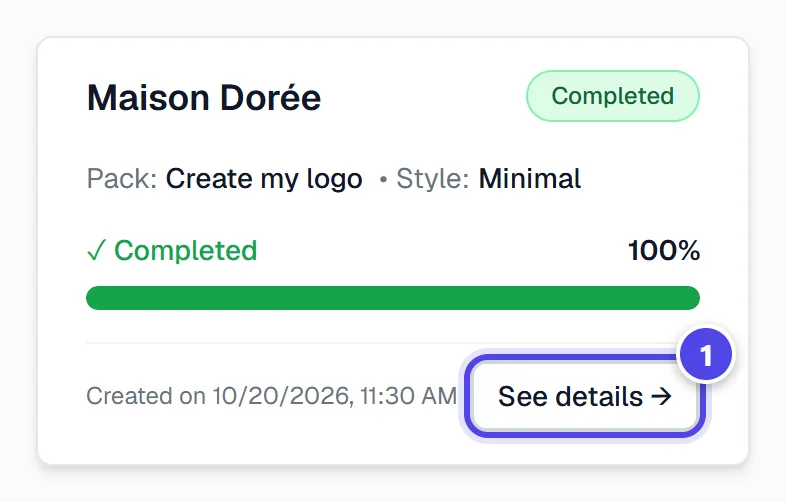
- 1See details
Screenshots taken with a demo account and brand (“Maison Dorée”). The logos shown are examples, not customer creations.
What you get
- The history of your projects and their logos.
- A filterable gallery with favourites.
Tips and common issues
- “No projects found”
- Solution: The filters may be too narrow, or the active brand has no project yet.
- A project stays “Generating”.
- Solution: The page updates itself; a large generation can take several minutes.
Frequently asked questions
How is this different from the library?
Projects track your logo generations; the library gathers all file types.
How do I download all of a project’s logos?
From “Downloads”, which offers one archive per project.
Are these pages paid?
No.