Logo editor: retouch by hand
“Logo editor” is a graphic editor to retouch a logo by hand: text, shapes, colours, layers. It is included in every plan, free account included. Exporting as PNG, JPG or SVG does not debit tokens.
Before you start
- A logo to retouch (from your gallery or uploaded), or a blank page.
Steps
Step 1
Add and edit elements
The toolbar offers “Select”, “Text”, shapes and the “Eyedropper”. “Add an image” and “Import an SVG” add your files. The “Properties” panel sets fill, stroke, font and opacity.
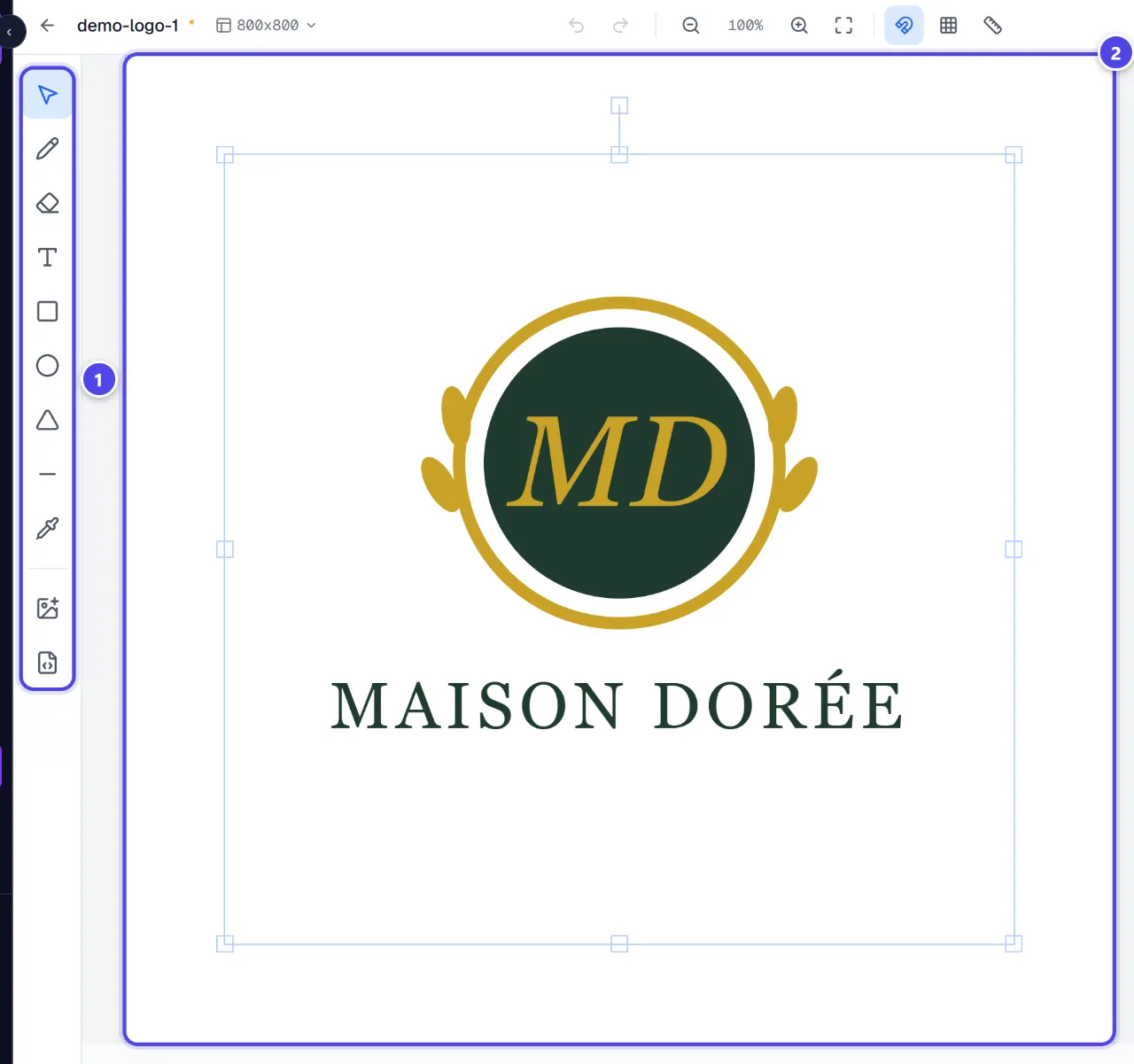
- 1Tools
- 2Canvas
Step 2
Organise with layers and alignment
“Layers” lists the elements; “Align” and the grid help position them. “Remove the background” cuts out an imported image (charged as background removal).
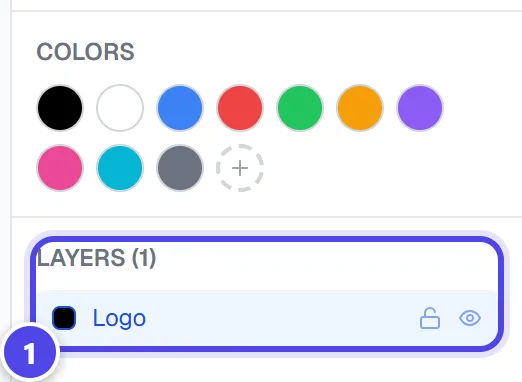
- 1Layers
Step 3
Save and export
“Save” keeps your project; “Export” opens the export: format, size, quality and transparent background.
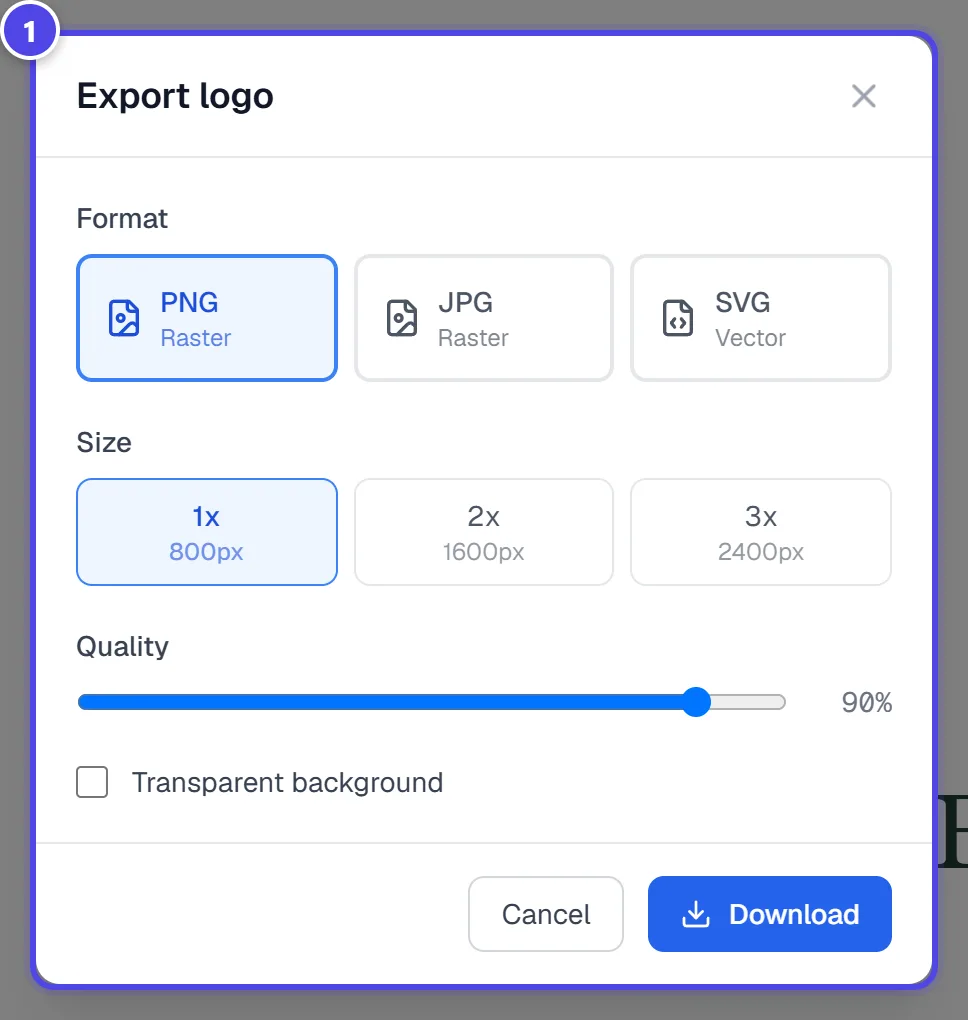
- 1Export options
Screenshots taken with a demo account and brand (“Maison Dorée”). The logos shown are examples, not customer creations.
What you get
- A PNG, JPG or SVG file of your retouched logo.
- In the SVG, text and shapes stay vector; an imported image stays an image.
Tips and common issues
- Error during export. Try again.
- Solution: An image imported from an external address can block export: replace it with a file from your computer.
- The JPG has a white background.
- Solution: JPG format does not support transparency Choose PNG to keep transparency.
Frequently asked questions
Is the editor paid?
No. Only cutting out an image from the editor debits the background removal cost.
Can I undo a change?
Yes: “Undo” and “Redo”.
Is the exported SVG vector?
Text and shapes, yes. An imported image stays an image in the SVG.