Mockups: your logo on real items
“Mockups” places your logo on several realistic items in one go. They are included in every plan, free account included, and do not debit tokens. Images download as PNG.
Before you start
- At least one logo in the active brand’s gallery.
Steps
Step 1
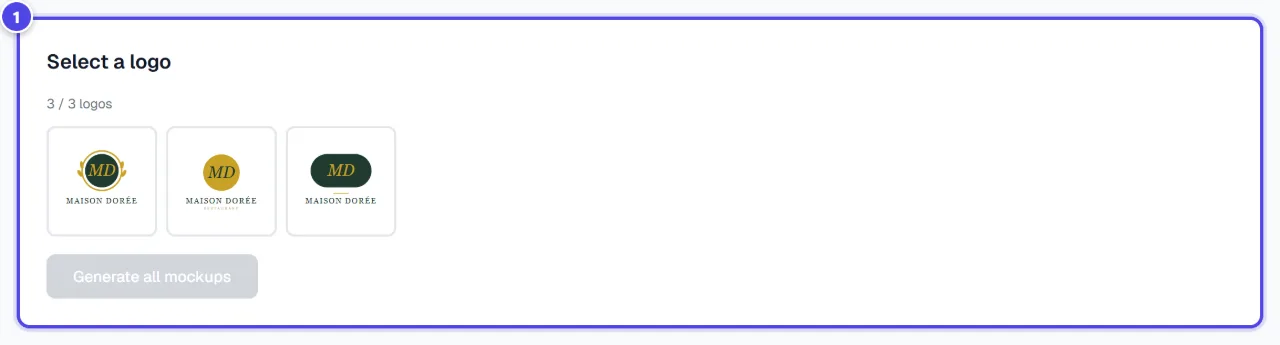
Select a logo
“Select a logo”: the logos offered come from your library.
On mobile
- 1Logos from your library
Step 2
Generate the mockups
Click “Generate all mockups”. 6 mockups are created instantly.
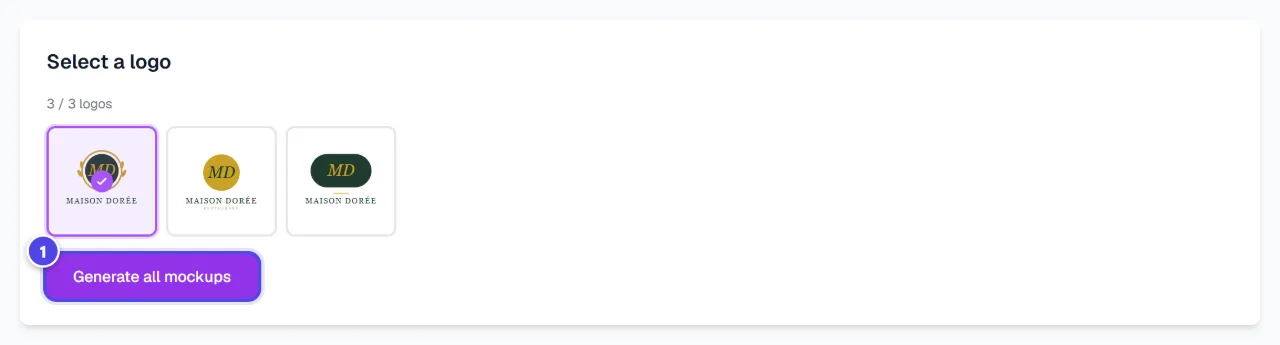
- 1Generate
Step 3
Download
“Download” saves one mockup; “Download all” saves them all. To place your logo yourself on a product, use “Studio Mockup”.
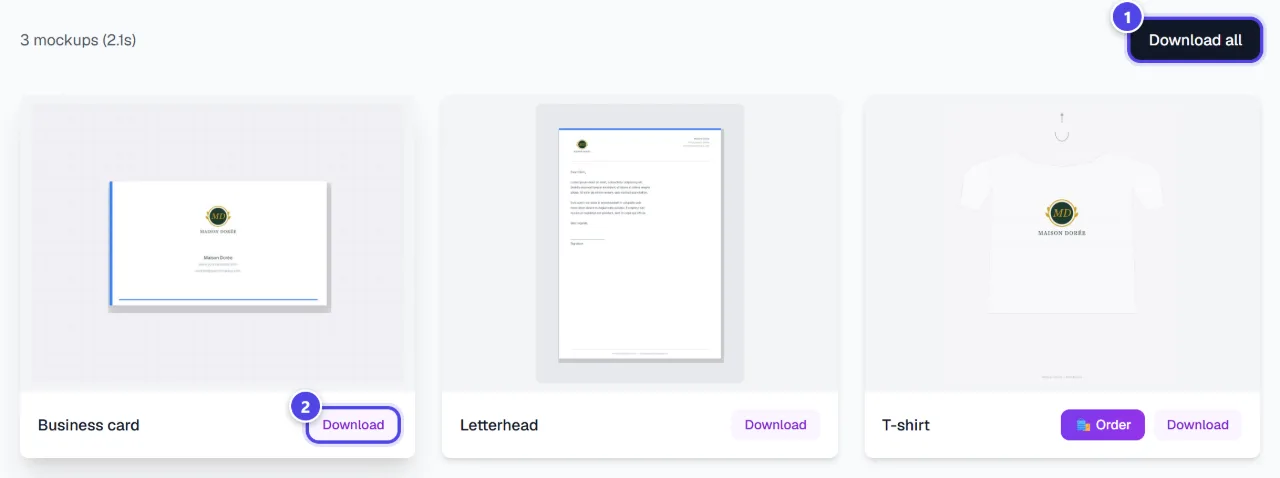
- 1Download all
- 2Download one mockup
Screenshots taken with a demo account and brand (“Maison Dorée”). The logos shown are examples, not customer creations.
What you get
- Mockups of your logo as PNG.
Tips and common issues
- “No logos available. Generate logos first.”
- Solution: Create a logo first, or switch the active brand.
- The logo shows a white background.
- Solution: Cut it out first with “Background removal” for a natural look.
Frequently asked questions
Are mockups paid?
No, they do not debit tokens.
Can I order the products?
Mockups are images. To order, see “Merchandise”.
Can I adjust the logo position?
Yes, in “Studio Mockup”.